Workout app for iPhone: a free gym log that works offline
GymDay for iPhone is a strength training log for the gym. Open an exercise and the weight and reps from last time are already in every set. Lifted the same? Tap the check mark. More or less? Change the number first. It works without a connection and without an account. Free: no subscription, no in-app purchases, no ads.

For iPhone with iOS 18.0 or later.
- No sign-up needed
- Works without a connection
- Download all your data as spreadsheets
Prefer the browser? GymDay also works on the website, with the same log after you sign in.
Updated · Checked in version 1.0.0 · Written by the team that builds GymDay

What the GymDay iPhone app is: a gym log, not a fitness tracker
GymDay is a workout log for lifting: sets, reps and weight for barbell, dumbbell, machine, cable and bodyweight exercises. A set is a few reps in a row without a break. Cardio goes in too — as time, plus distance where the exercise has one. It is made for the gym floor — between sets the screen shows the numbers you need and nothing else.
If you’re looking for a fitness app for iPhone that counts steps, reads your heart rate or gives you home workouts, GymDay isn’t that. It doesn’t write programs either: you build your own plans, and the app helps you progress on them.
-
Last time’s numbers, already filled in.
Each exercise opens with your previous weight and reps in the fields and a “Last time” line above them.
-
No set gets lost.
A set is saved on the iPhone the moment you tick it, signal or no signal.
-
Your progress, nobody else’s.
Records, charts and hints compare you only with your own past workouts. No feed, no rankings.
How to log a workout on iPhone, step by step
Download GymDay from the App Store and open it. There’s no sign-up screen: the Diary opens right away.
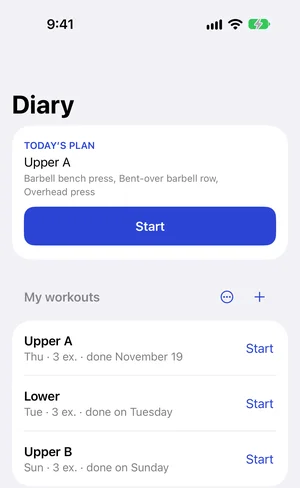
Tap “Start a workout now”. If you’ve made a plan for today, it’s under “Today’s plan” — tap “Start”.
Tap “Add exercise” and find it by name.
The set rows already hold your weight and reps from last time, and “Last time” shows the whole previous result. The first time you do an exercise the fields are empty: type the numbers once.
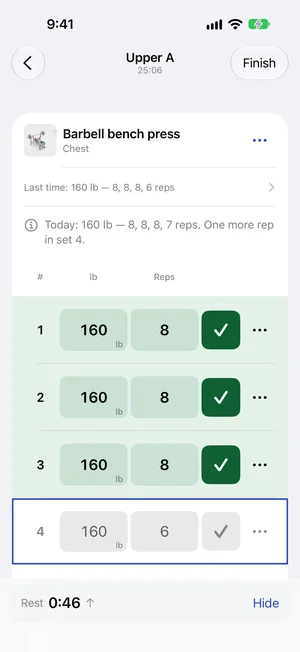
Lifted the same? Tap the check mark. Lifted more or less? Change the number, then tap the check mark.
Rest starts by itself. Add a set with “Set”; mark a warm-up set, a drop set or a superset from the “…” menus — not sure what those are? Skip them.
Tap “Finish”. Next time this exercise opens with today’s numbers.

Weight is in kilograms or pounds, picked from your iPhone’s region — pounds in the US. Change it in Profile → Settings → “Weight units”. Pounds can be entered in steps of 0.25 lb, so a 135 lb set stays 135 lb.
Rest timer on the Lock Screen and in the Dynamic Island
When you tick a set, rest starts by itself. By default it’s a stopwatch: it shows how long you’ve been resting and has no end. Switch to the timer and it counts down and tells you when rest is over — even if the phone is locked.
Rest shows on the Lock Screen and, on iPhones with the Dynamic Island, in it, so you can check the time without opening the app. With the timer you can add or take away 30 seconds, or skip the rest; the stopwatch you simply hide when you’re ready.

Set up the rest timer
Open Profile → “Rest”.
Under “Mode”, choose “Stopwatch” or “Timer”.
For the timer, set how long to rest “After a warm-up set” and “After a working set”.
If iOS asks to allow notifications, allow them: otherwise the timer can’t tell you that rest is over.
If you don’t see rest on the Lock Screen
Live Activities or notifications are probably off for GymDay in iOS Settings. Profile → “Rest” then shows a hint with an “Open settings” button; turn on Live Activities and notifications for GymDay there.
Offline workout app: what works without internet
Basements and steel walls kill the signal. On iPhone, GymDay doesn’t need it for training: everything is saved on the phone first.
Works without internet:
- starting, logging and finishing a workout, adding exercises and sets;
- the rest stopwatch and timer, on the Lock Screen and in the Dynamic Island;
- plans, history, progress, records and coach hints;
- body weight and measurements;
- downloading your data as a file and importing a file.
Needs internet:
- technique videos (exercise pictures are in the app);
- signing in and syncing with the website;
- updates to the exercise library (only the library comes down; your workouts aren’t sent);
- links to the website, such as the privacy policy.
With an account, entries made offline go out once the connection is back and the app is open. Closing the app loses nothing: they go out the next time you open it with a connection.
Check it yourself
Turn on Airplane Mode before your next workout and log it as usual. Turn it off afterwards: if you have an account, the workout shows up on the website.
On the website, offline works only in part: you start a workout with a connection. How the website handles it.
No account needed: where your workouts are stored
Install GymDay and start: no email, no password, no sign-up screen. Without an account, your workouts, plans and measurements stay only on this iPhone — we don’t receive them.
Where your log is without an account:
- on the iPhone, in the app’s own storage;
- in your iPhone backup, if you back up to iCloud or a computer;
- in the file you download yourself (see Export).
We don’t have a copy, so if the phone is lost and there’s no backup, we can’t restore your log. Deleting the app deletes the log from the iPhone. To be safe, download your data now and then, or create an account.
Privacy policy: the app without an account Terms of use: data on your device
Progress, personal records and when to add weight
Progressive overload means adding a little weight or reps over time. GymDay works out the next step from your own records with simple rules and shows it as a hint in the exercise: how many reps to aim for today and when to add weight. You decide whether to follow it.
- “Am I getting stronger?” in Progress shows which exercises are going up and which are stuck.
- Each exercise has its personal records, an estimated one-rep max and a chart.
- Hints work right away, with nothing to set up. Set the rep target and the weight increase for an exercise in “Target and increase”, or turn hints off in Profile → “Coach hints”.
Progress shows calculations from your records, not an assessment of your health. Not medical advice.
How progress and hints are counted


Workout plans and exercises with technique videos
Build your own workouts in “My workouts” and pin them to days of the week. On a training day the plan waits under “Today’s plan” in the Diary. There are no ready-made programs.
- “Repeat” any past workout, or save it with “Save to My workouts”.
- Hundreds of exercises with technique videos, the muscles they work and safety tips.
- Add as many of your own exercises as you need, each with a note for next time.
- Plans and exercises you no longer use go to the archive; “Restore” brings them back.

Import a spreadsheet or a GymDay file on iPhone
Moving from a spreadsheet, notes or another app? GymDay on iPhone takes two kinds of files:
-
GymDay file
The archive from “Download my data”, made on an iPhone or on the website, with workouts, plans, exercises and measurements.
-
Your own spreadsheet
Saved as CSV: date, exercise, weight and reps, one row per set.
How to import
Open Profile → “Your data” → “Import data”.
For your own spreadsheet, tap “Download the template”, fill it in Numbers, Excel or Google Sheets and save it as CSV.
Tap “Choose a file” and pick the file in Files.
GymDay checks the file and shows what will be added. If it doesn’t recognise an exercise name, you choose the matching exercise yourself.
Tap “Import”. Nothing is saved until you confirm.
Import the same file again and nothing is doubled: entries you already have are listed under “Already there”.

If you’re signed in, what you import also goes to your account. Coming from another app: export your history from it as CSV and arrange the columns as in the GymDay template — date, exercise, weight, reps.
Export your workout log from iPhone
Open Profile → “Your data”.
Tap “Download my data”. The app prepares a ZIP file.
Save it to Files or send it wherever you like.
Open the tables in Excel, Numbers or Google Sheets.

Inside: workouts with every set, plans, exercises and measurements. It’s free, any time, with or without an account and without internet. The same file can be imported back — on another iPhone or on the website.
Sync with the website and connect an AI assistant
An account is optional. It lets you use the same workout log on the iPhone and on gymday.fit — in a browser on a computer or another phone — and connect an AI assistant.
Open Profile → “Account” and tap “Create account” or “Log in”.
Confirm your email with the link we send.
GymDay asks “Move your diary to …?” with your email — tap “Move”. Workouts, plans and measurements from the iPhone become part of the account, and entries from the website appear on the iPhone. Nothing is deleted on the phone. If a workout is in progress, the move waits until you finish it.
Measurements go to the account only after you consent to the processing of health data. Without consent they stay on the iPhone.
From then on, log on the iPhone and review on the computer: changes go out on their own when there’s a connection.
Log out any time — the log stays on the iPhone. Terms of use: sync between devices
With an account you can connect Claude or ChatGPT to your log on the website and ask about your training. The iPhone app itself doesn’t send anything to an AI assistant.
Limits: what the iPhone app doesn’t do
- iPhone only. On iPad it runs as an iPhone app, in an iPhone-sized window. There’s no version for Mac, Apple Watch or Apple Vision Pro.
- No Apple Health. GymDay doesn’t write workouts to Apple Health and doesn’t read heart rate or steps.
- Cardio is time and distance only — no GPS route, pace zones or heart rate.
- No ready-made programs. You build your own plans; hints help you progress on them.
- Your own exercise photos are on the website only. On iPhone, an exercise has a note.
- Technique videos need internet.
- No account — no recovery. If the phone and its backup are lost, we can’t restore the log.
- English and Russian only, following your iPhone’s language.
- iOS 18.0 or later.
- Rest on the Lock Screen needs Live Activities and notifications allowed for GymDay in iOS Settings.
- No feed, friends or rankings — on purpose.
Specifications and compatibility
- Name on the App Store
- GymDay.fit: Workout Tracker
- Compatibility
- iPhone with iOS 18.0 or later: iPhone XS, XR and newer, iPhone SE (2nd and 3rd generation)
- iPad
- Runs as an iPhone app, in an iPhone-sized window
- Not supported
- Mac, Apple Watch, Apple Vision Pro
- Languages
- English, Russian — follows your phone’s language
- Weight units
- Kilograms or pounds
- Accessibility
- Dark mode, as set on your iPhone
- Age rating
- 13+
- Category
- Health & Fitness
- Price
- Free, no in-app purchases, subscription or ads
- Privacy
- No ads or tracking across apps. Works without an account — your log stays on the iPhone
- Account
- Optional — for sync with the website
- Latest version
- 1.0.0, — What’s new
What’s new in each version
Every version of GymDay for iPhone, newest first. Updates arrive through the App Store; this list follows its version history.
Version 1.0.0
- The first version on the App Store.
- Workout log: weight and reps from last time in every set; warm-up sets, supersets and drop sets; weighted, bodyweight and assisted exercises.
- Rest stopwatch or timer with a notification, on the Lock Screen and in the Dynamic Island.
- Logging works without a connection, and no account is needed.
- Your own plans by day of the week, Today’s plan, and repeating a past workout.
- Hundreds of exercises with technique videos, muscles and safety tips; your own exercises with notes.
- Coach hints, “Am I getting stronger?”, personal records, an estimated one-rep max and charts.
- Body weight with its weekly average, body composition and measurements; weekly load by muscle group; kilograms or pounds.
- Download all your data as a ZIP of spreadsheets; import a GymDay file or your own CSV.
- An optional account to sync with gymday.fit; you can delete it right in the app.
- English and Russian.
Questions about the iPhone app
- Is the GymDay iPhone app free?
- Yes. No subscription, no in-app purchases and no ads. If GymDay ever closes, we’ll announce it in advance and leave time to download your data.
- Do I need an account?
- No. Download it and start; your log stays on the iPhone. An account is only for sync with the website and other devices and for an AI assistant.
- Does it work without internet?
- Yes: workouts, rest, plans, progress and measurements work offline. Technique videos, exercise library updates and sync need a connection. What works offline.
- Does it work on iPad, Mac or Apple Watch?
- On iPad it runs as an iPhone app, in an iPhone-sized window. There’s no version for Mac, Apple Watch or Apple Vision Pro.
- Does it sync with Apple Health?
- No. GymDay keeps its own log and doesn’t write to or read from Apple Health.
- How do I move my workouts from another app or a spreadsheet?
- Save them as CSV in the layout of the GymDay template and import the file on the iPhone. Step by step.
- What happens to my log if I delete the app or change phones?
- Deleting the app deletes the log from the iPhone. Moving to a new iPhone from a backup brings it along. With an account, open the app with a connection before you delete it or switch phones, so everything is sent; then log in on the new iPhone and your log loads from the account.
- Kilograms or pounds?
- Either. The app picks them from your iPhone’s region; change it in Profile → Settings.
- Does GymDay compare me with other people?
- No. Records, charts and hints use only your own workouts.
- Is there an Android app?
- Not yet: the Android app is in development, with no date. Meanwhile, GymDay works in any Android phone’s browser, with the same log as the iPhone app after you sign in.
About this page
This page is written and kept up to date by the team that builds GymDay. Every feature and button name here was checked in GymDay for iPhone version 1.0.0 on . Screenshots are from that version with a test workout log, not anyone’s real data. When a new version comes out, we add it to “What’s new” and check the page again.
- Updated:
- Terms of use: the iPhone app
- Privacy policy: the app without an account
- Questions: [email protected] — a person reads and answers.
- iPhone, iPad, Mac, Apple Watch, Apple Vision Pro, App Store and Dynamic Island are trademarks of Apple Inc. Excel is a trademark of Microsoft; Google Sheets is a trademark of Google LLC.
Download GymDay and log your next workout
Free, no subscription or ads. No sign-up. Works offline.