MCP gym log: your workout log inside Claude and ChatGPT
GymDay is a free strength-training log on the web. Use it as an AI workout tracker: connect it to Claude or ChatGPT through its MCP server and ask right in the chat: “Chart my bench press for six months”, “Log today’s workout: squat 3×5 at 225 lb”, “Weight 181.6 lb this morning”. The assistant reads and records only what you allow; disconnect any time.
Address to connect — you’ll paste it in your assistant’s settings (step 1)
https://gymday.fit/mcp
Couldn’t copy. Select the address and copy it by hand.
- Read-only until you allow recording
- Nothing to install from GymDay
- Checked with Claude and ChatGPT on
Updated · written by the team that builds GymDay
What GymDay is
-
A log built for the gym.
Sets, reps and weight in a couple of taps, with your previous weights for each exercise right there. Supersets, drop sets, routines, personal records and progress charts.
-
Your data stays yours.
Export your whole workout log any time, free. No caps on history, routines or your own exercises.
-
AI is your assistant, not ours.
GymDay doesn’t write answers or programs. Claude or another assistant does the talking; GymDay gives it your numbers and keeps your log.
Ask Claude or ChatGPT about your workouts: examples
Every conversation below is based on a run on with a test account — in Claude, in ChatGPT or directly on the GymDay server, as marked. Answers are shortened and reworded; the GymDay data is from the run.
Progress and personal records
- Chart my bench press progress
- What did I do last week?
- Where am I stuck? (plateau)
- What to try next time
- How often am I training?
- Compare my squat: last month and this month
- Coming back after a break
Chart my bench press progress
- Found “Barbell bench press”
- Read six months of bench sessions
- Read GymDay’s progress for this exercise
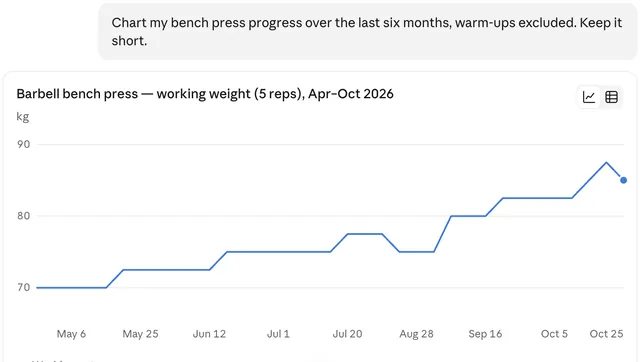
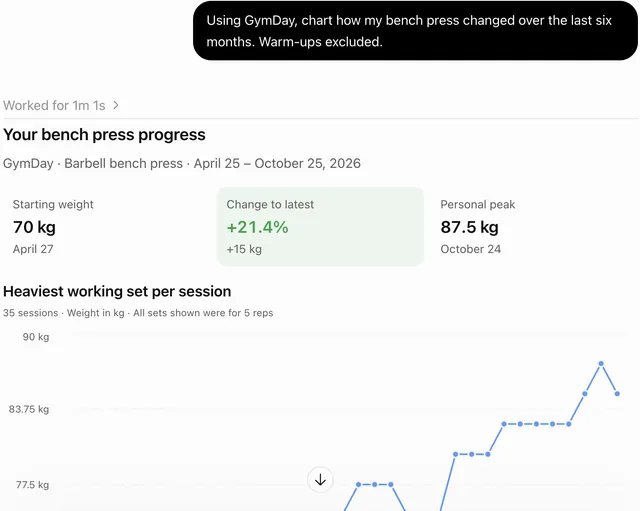
Here’s your top working set each week, warm-ups left out. Six months ago: 155 lb × 5. A month ago: 180 lb × 5. Last Monday: 185 lb × 5 — GymDay marks the lift as growing. The gap is three weeks with no workouts in summer. My own one-rep max estimate from 185 × 5 is about 215 lb; GymDay doesn’t send one.
What did I do last week?
- Checked today’s date and your time zone
- Read last week’s workouts
Two workouts last week. Want the sets for either of them?
- Monday — Upper ABarbell bench press, Bent-over barbell row, Overhead press, Pull-up + Chest dip (superset)
- Friday — Lower BBarbell back squat, Deadlift
Where am I stuck? (plateau)
- Read your progress overview
- Read progress for overhead press
One plateau: overhead press hasn’t grown for six weeks — it’s at 100 lb × 5. Bench and squat are still growing. Right now your shoulders get 3 working sets a week, the fewest of your muscle groups (chest 8, back 9, legs 5). I’m comparing you only with your own earlier results.
What to try next time
- Found “Barbell bench press”
- Read its GymDay coach hint
GymDay’s coach hint: at 185 lb, try one more rep on the set where you did 5. Coach hints are GymDay’s fixed rules: they look at your recent sets and suggest the next weight or reps. It’s a suggestion, not a plan — you choose.
How often am I training?
- Read your progress overview
A little. This week you’ve trained twice; you usually train three times a week. In recent weeks you logged 10 workouts, against 12 in the same stretch before that.
Compare my squat: last month and this month
- Found “Barbell back squat”
- Read its sessions, two pages back
Last month you went 215 → 225 → 230 lb × 5 and held 230 from the middle of the month. This month: 230 lb × 5 in the first two weeks, then 235 lb × 5 in the last two sessions. Warm-ups are left out.
Coming back after a break
- Read your bench sessions around the break
Before the break you were doing 170 lb, 5 sets of 5. Your first session back was 165 lb × 5 × 5 — one step lighter. You stayed there for about a week and a half, and two weeks after returning you moved up to 175 lb, above your pre-break weight.
Log sets, reps and weight
- What can you do with my workout log?
- Log this morning’s workout with a superset and a drop set
- Same as last Monday, a bit heavier
- Fix a set, then undo
- Bring back a deleted workout
- Log a morning weigh-in
What can you do with my workout log?
- Checked which permissions you gave
I can read your log — workouts, sets, plans, progress, records and coach hints — and record or fix workouts and plans. You also allowed body measurements, so I can read and log those. Your units are kg and cm, and I use your time zone for dates like “yesterday”.
Log this morning’s workout with a superset and a drop set
How many reps on pull-ups and dips?
- Found 3 exercises in the GymDay catalog
- Saved this morning’s workout: 10 sets, one superset, one drop set
Saved: today, 9:00 am, 60 min, 10 sets. It’s in your GymDay history now.
Same as last Monday, a bit heavier
- Found last Monday’s workout
- Read its sets
- Saved yesterday’s workout, 17 sets
Saved Upper A for yesterday, 17 sets: bench press 190 lb, 5 × 5 (last Monday 185 lb); everything else as on Monday.
Fix a set, then undo
- Read today’s workout
- Changed 1 set
Fixed: bench press, set 3 — 180 lb × 5 (was 185 lb × 5).
- Found its last edit
- Undid it
Done — set 3 is back to 185 lb × 5.
Bring back a deleted workout
- Read your recently deleted items
- Restored 1 workout
Found it: Lower B, Friday. It’s back in your history with all its sets.
Log a morning weigh-in
- Saved body weight and waist for today
- Checked your measurement types
- Read your recent measurements
Saved for today: body weight 183.4 lb, waist 33.6 in. Three months ago you weighed 186.5 lb. You don’t have a resting pulse measurement yet — should I create “Resting pulse” as a plain number, without units?
- Created the measurement “Resting pulse”
- Saved resting pulse for today
Done: resting pulse 58 for today.
Plans and history
- Build a routine from a photo of your gym
- An easy week from an existing plan
- Rename and archive a plan
- Import a training log from Google Sheets or CSV
Build a routine from a photo of your gym
- Found 5 exercises in the GymDay catalog
- Saved the plan “Hotel full body”
I can see dumbbells, an adjustable bench, a cable station and a treadmill. I saved “Hotel full body” for Tuesdays and Thursdays. For the strength moves, 8–12 reps; 10 minutes on the treadmill. Change anything you like.
An easy week from an existing plan
- Read the plan “Upper A”
- Saved a new plan “Upper A — deload”
Saved “Upper A — deload” for Mondays: the same exercises and the same superset, fewer sets in each. Upper A is unchanged. Weights for the easy week are up to you.
Rename and archive a plan
- Read the plan
- Renamed it
- Moved it to the archive
Renamed to “Upper A — easy week” and moved to the archive — nothing was deleted, you can bring it back any time.
Import a training log from Google Sheets or CSV
- Converted your file into GymDay’s import format
- Started an import
- Checked the preview
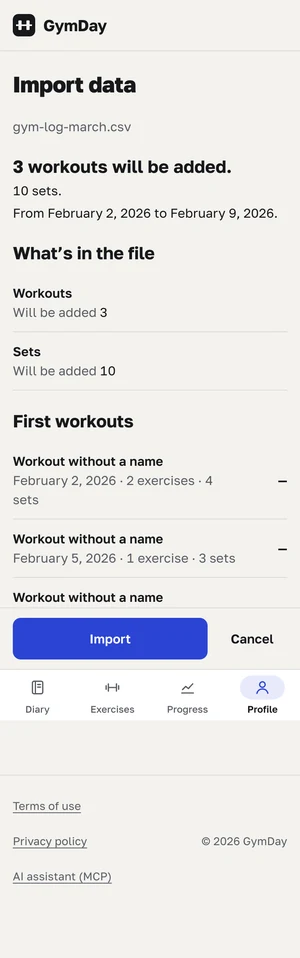
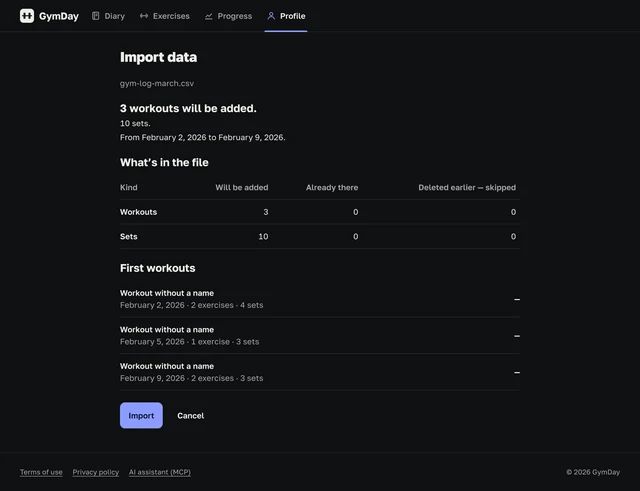
Preview: 3 workouts, 10 sets. “Bench press” and “Squat” matched your exercises. “Red machine row” didn’t — is it “Machine row”, or one of the other options?
- Sent your answer
- Checked the new preview
- Asked you to confirm
Tick “Import into GymDay” and press Submit — nothing is written until you do.
- You confirmed
- 3 workouts written
Done: 3 workouts from March are in your history.
What an MCP server is and what it does for your training log
An AI assistant like Claude knows a lot about training in general and nothing about your training. MCP, the Model Context Protocol, is an open standard that lets an assistant connect to an app and work in it for you. An MCP server is the app’s side of that connection: it tells the assistant what it can do — read workouts, log sets, restore a deleted entry — and does it when asked.
How does the GymDay MCP server work? You ask in your own words. The assistant decides which data it needs, asks GymDay for it within the permissions you gave, and writes the answer. When you ask it to record something, GymDay saves it to your workout log as if you had entered it yourself.
- Youask in your own words
- AssistantClaude or another app that supports MCP
- GymDaygives your numbers and saves changes, only within your permissions
The assistant writes the answers. GymDay supplies your sets, reps and weights and keeps your log.
It’s a remote MCP server: it runs on the GymDay website, so there is nothing to install. You add its address in the assistant once and sign in to GymDay.
How to add GymDay as a connector in Claude or ChatGPT
In short
- Install anything?
- No. You paste one address in your assistant’s settings.
- On the phone?
- Add GymDay once on the web, then use it in the Claude or ChatGPT mobile app.
- Price?
- GymDay is free. The assistant’s plan is between you and its maker.
- What if it deletes something?
- It can be brought back. Start with reading only if you prefer.
- My email and password?
- The assistant gets neither. You sign in on gymday.fit itself.
Which assistants work
- Claude — web, desktop and mobile appsWorks · checked
- ChatGPT — web and mobile appsWorks · checked
- Other apps that connect to a remote MCP server with sign-in (OAuth)Should work with the three steps below
- Desktop apps that return to themselves with their own link instead of a web addressCan’t connect to GymDay yet
Any assistant — three steps
- Add GymDay in your assistant’s settings.Look for “Connectors”, “Plugins” or “MCP servers”, add a custom one and paste the address:
https://gymday.fit/mcp - Sign in to GymDay.The assistant opens the GymDay sign-in page on gymday.fit. No account yet? Create one there — it’s free.
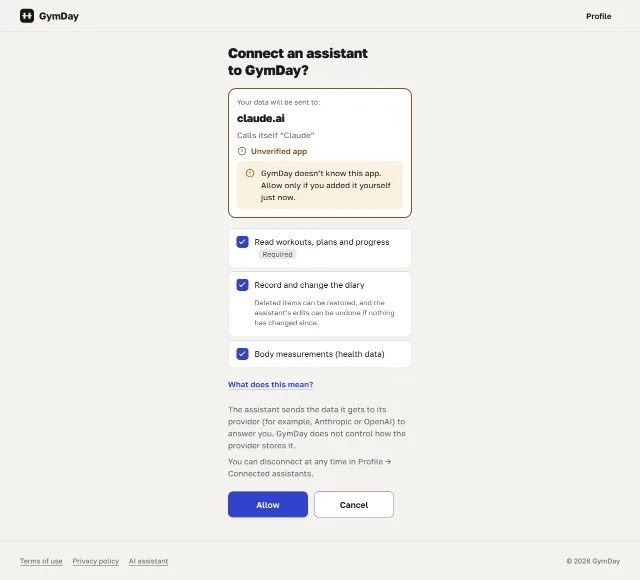
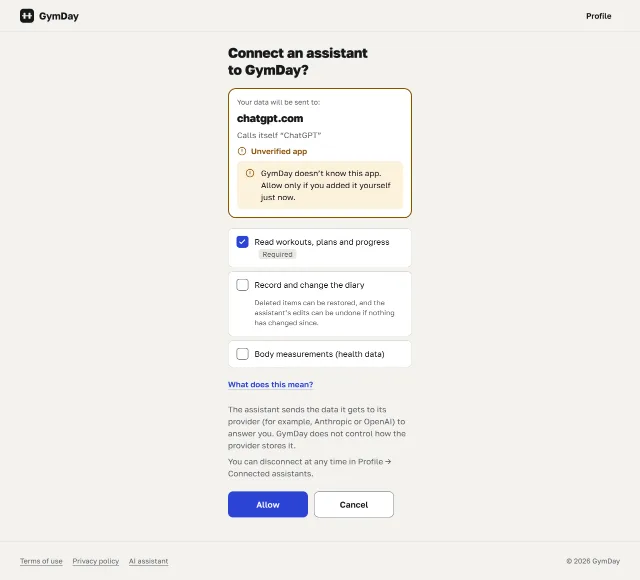
- Choose what to allow and press Allow.Reading is always on. Recording and body measurements are separate boxes, off until you tick them. Not sure? Leave reading only — you can allow recording later by connecting again.
The GymDay screen shows where your data will go — claude.ai or chatgpt.com. If that isn’t the assistant you just added, or you didn’t start connecting yourself, press Cancel.
Add a custom connector in Claude (web, Desktop, mobile)
A connector you add once works on claude.ai, in Claude Desktop and in the Claude mobile apps — they share your Claude account. Add it on the web or in Claude Desktop.
- In Claude, open Settings → Customize → Connectors.
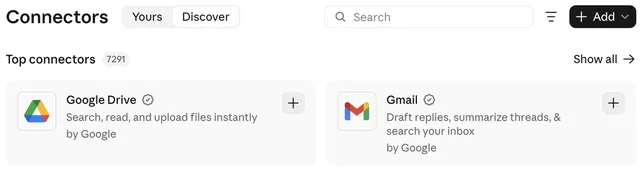
- Press Add and choose Add custom connector.
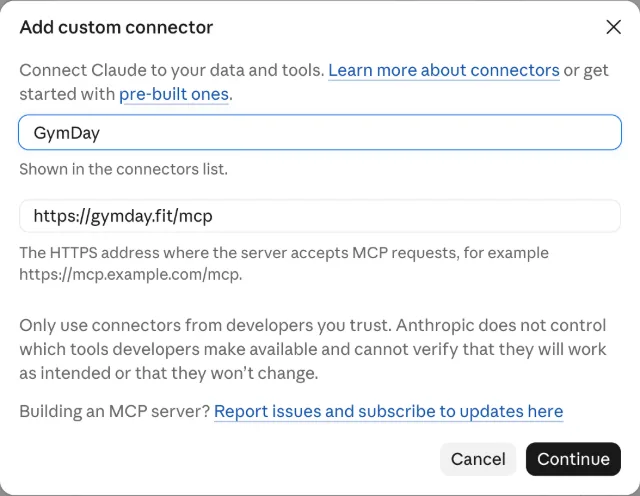
- Name: GymDay. MCP server URL:
https://gymday.fit/mcp. Press Continue. - The GymDay screen opens: sign in, tick what to allow and press Allow.
- In a new chat, ask: “What can you do with my GymDay log?”

If the sign-in window doesn’t open, allow pop-ups for claude.ai. If Claude says a connector with this URL already exists, GymDay is already added — open it in Connectors instead of adding it again. On a team or company plan, the connector may have to be added by your organization’s owner.
These steps work for any remote MCP server. Local MCP servers are set up differently, in Claude Desktop’s settings file — GymDay doesn’t need that. More in Anthropic’s guide to custom connectors.
Steps checked on .
Add GymDay to ChatGPT as a custom MCP server
- In ChatGPT, open Customize → Plugins, press Add and choose Add custom MCP server.
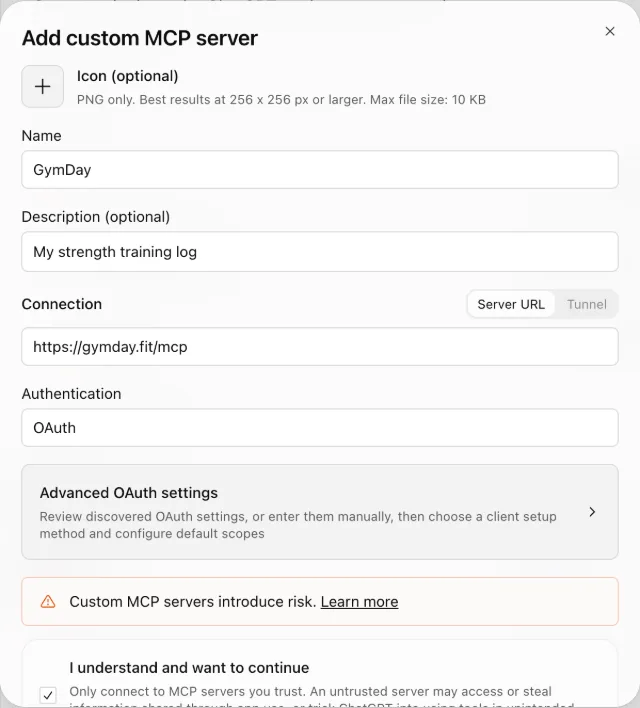
- Name: GymDay. Description, if you like: “My strength training log”. Connection: Server URL —
https://gymday.fit/mcp. Authentication: OAuth. - Tick I understand and want to continue and press Create as a plugin.
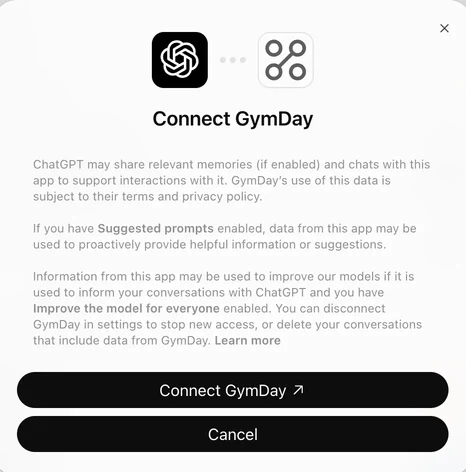
- In the Connect GymDay window, read ChatGPT’s note and continue.
- The GymDay screen opens: sign in, tick what to allow and press Allow.
- In a new chat, ask: “Make a chart of my bench press over the last six months.”
Steps checked on .
Other MCP clients with OAuth
Any app that connects to a remote MCP server with sign-in (OAuth) can use the three steps above; the technical details are in For developers. If an app asks you to type a “client ID” or a “redirect” address yourself, it can’t connect to GymDay yet. Some desktop apps return to themselves with their own link instead of a web address — GymDay doesn’t accept that yet.
Permissions: what the assistant can read and change
GymDay shows its own screen with three permissions. You change them only by connecting again — the assistant can’t give itself more rights.
| Permission | What the assistant can do | By default |
|---|---|---|
| Read workouts, plans and progress | See workouts, sets, reps and weights, routines, your own exercises, Progress, personal records and coach hints, plus your language, time zone and units. Change nothing. | Always on |
| Record and change your workout log | Add past workouts; change and delete workouts, sets, plans and your own exercises; archive; create exercises; move history from a file. Deleting an exercise also deletes its history and its rows in plans. Deleted items can be restored, and the assistant’s edits can be undone if nothing has changed since. | Off |
| Body measurements (health data) | Read your body weight and measurements and, together with the permission above, record them. | Off; available after you consent to health data in Progress → Body |

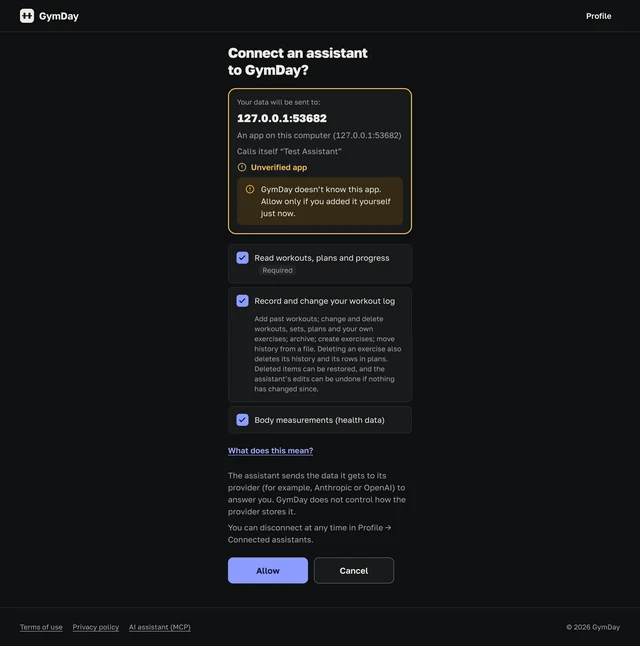
“Unverified app”. That’s how GymDay marks connections whose address we haven’t checked yet. Allow only if the address on the screen is your assistant’s and you started connecting yourself; otherwise press Cancel.
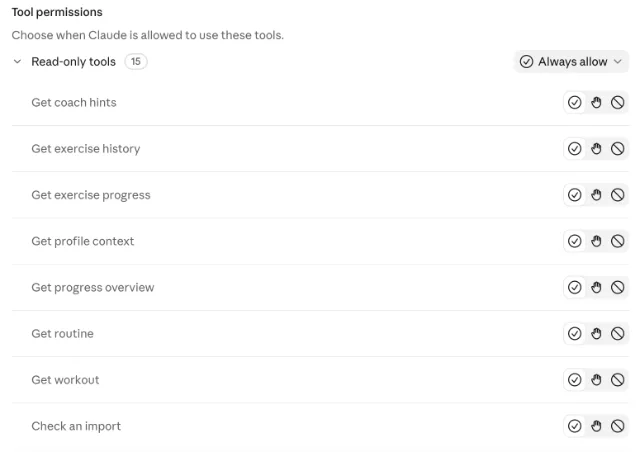
Extra control in Claude. In the GymDay connector settings, Claude lets you choose for each GymDay action whether Claude may use it always, must ask you first, or never (Tool permissions).
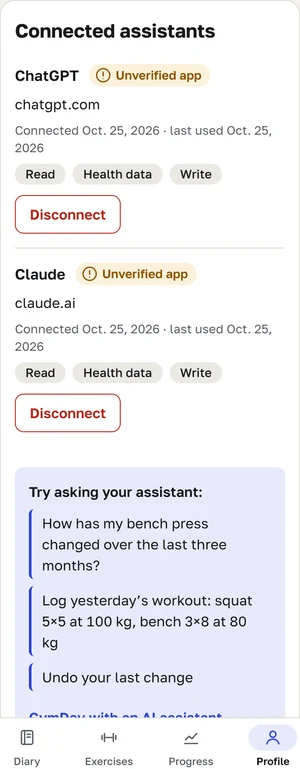
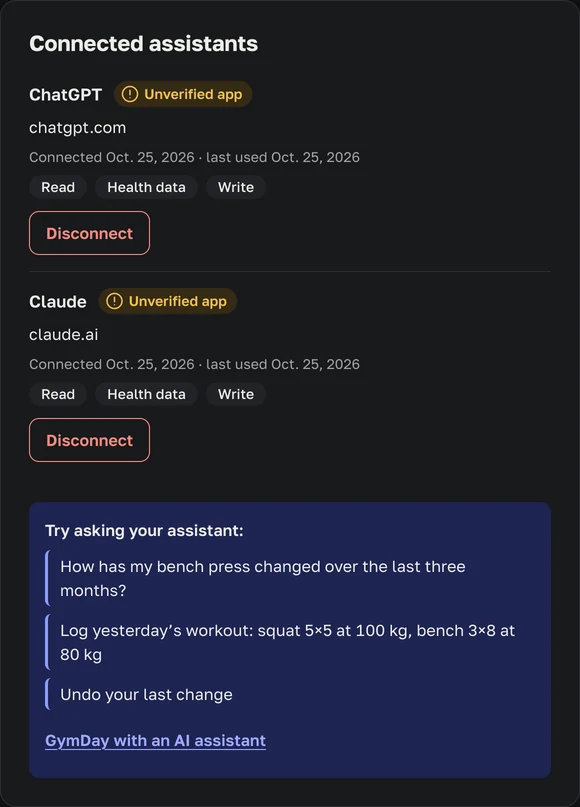
Disconnecting. In GymDay, open Profile → Connected assistants and press Disconnect. The assistant loses access at that moment. Disconnecting deletes nothing — your workouts and the entries it made stay in your log.
Privacy: what data the assistant sees
The assistant can see
- Workouts, sets, reps and weights
- Routines and your own exercises
- Progress, personal records and coach hints
- Your language, time zone and units
- Body weight and measurements — only with the health-data permission
The assistant never gets
- Your GymDay password and email address
- Your sex and year of birth
- Exercise notes and photos
- Your height
- Anything from other GymDay users
You sign in on gymday.fit itself, so the assistant never sees your GymDay password. It gets only the permissions you tick and loses them the moment you disconnect. It can’t delete your account, change your email or download your workout log; your export is always in your profile.
The assistant sends what it gets to its maker (Anthropic for Claude, OpenAI for ChatGPT) to answer you, and from there the data is handled under that company’s rules. Whether your conversations are used to train models is a setting of your assistant, not of GymDay. For example, when you connect GymDay, ChatGPT warns that data from the app may be used to improve its models if “Improve the model for everyone” is on in your ChatGPT settings. Connect only assistants you trust.
GymDay keeps a record of each connection and of the changes assistants make, so you can review and undo them. Details: Privacy policy — AI assistant, Terms of use — AI assistant.
Undo and restore the assistant’s changes
An assistant can misunderstand a request — the wrong date, the wrong exercise, kilograms instead of pounds. Almost everything it does can be fixed, undone or brought back; the table shows how, with one exception.
| What happened | How to fix it |
|---|---|
| It saved a set or a workout with a mistake | Ask it to fix it (“the last set was 170, not 175”), or fix it yourself in GymDay |
| It changed a workout or a plan, and you want the old version | Ask “undo your last change”. Works if nothing was changed after its edit; otherwise it shows you the current values |
| It deleted something you needed | Ask “what did you delete?” and “bring it back”. Deleted workouts, sets, plans, exercises and measurements can be restored for a while — the assistant shows the list |
| You want to see everything it changed | Ask “what did you change in my log?” — it lists its recent changes |
| An import brought in the wrong workouts | The exception: a finished import can’t be undone as a whole — imported workouts are deleted one by one |
GymDay tells the assistant to check with you before deleting or overwriting anything. The assistant follows this, but GymDay can’t enforce it — check what it records, especially the first few times.
Limits: what the assistant can’t do
- GymDay doesn’t compose training programs. The assistant may suggest a routine and save it for you; it’s the assistant’s suggestion, not ours. Coach hints are fixed rules that suggest the next weight or reps from your own sets — progressive overload as a hint, not a plan.
- It isn’t medical advice. Neither GymDay nor the assistant replaces a coach or a doctor. You choose the weight and load.
- No comparing you with other people. We ask the assistant to talk only about your own progress over time — no norms or rankings. It’s another company’s program; if it slips, tell it.
- It doesn’t touch a workout in progress. While you log a workout in the app, the assistant can’t change it; it saves a separate entry.
- It can’t log warm-up sets. It records working sets and drop sets; add warm-ups in the app.
- It doesn’t see notes, RPE or photos. A set holds weight, reps, time and distance.
- It sees your language, time zone and units so it answers in the right format, but it can’t change them, your height or your profile.
- It can be misled by text it reads a file, someone else’s spreadsheet, a name in your log. Give it only files you trust and check its changes.
- It doesn’t read your watch or other apps. GymDay doesn’t receive data from fitness trackers. To move your history, give the assistant your export file or import a workout log from CSV on the website.
- It can be wrong. An assistant can misread a request or a number. Check what it records.
Troubleshooting the connection
| What you see | What to do |
|---|---|
| The sign-in window doesn’t open | Allow pop-ups for your assistant’s site and try again |
| Claude says a connector with this URL already exists | GymDay is already added — open it in Settings → Customize → Connectors |
| It says it has no permission to record | Connect GymDay again and tick “Record and change your workout log” |
| The body measurements box is grey, or it sees no measurements | Add your first measurement in Progress → Body and consent there, then connect again and tick “Body measurements” |
| It doesn’t see yesterday’s workout | Check that the workout is finished in the app and that the time zone in your profile settings is right. If you archived it, ask the assistant to look in the archive |
| It says the workout is in progress | Finish the workout in the app, or make the change there |
| It doesn’t know about something GymDay can do | Start a new chat. If that doesn’t help, remove GymDay in the assistant’s settings and connect again |
| The GymDay screen says “Unverified app” | Check that the address is your assistant’s and that you started connecting (see Permissions) |
| GymDay stopped answering after you disconnected it | That’s how disconnecting works. Connect again to continue |
| You connected again and now see two connections in your profile | Each new connection appears separately. Disconnect the old one in Profile → Connected assistants |
| Something else | Write to [email protected] and say which assistant you use |
Is it free?
Connecting an assistant is free, like all of GymDay today. The assistant itself works on its maker’s terms — whether your Claude or ChatGPT plan includes connectors is up to them.
For developers: MCP server details (technical)
- Server address
https://gymday.fit/mcp- Transport
- Streamable HTTP: POST with JSON responses, no SSE stream, no protocol session
- Protocol versions
- 2026-07-28; also 2025-11-25 and 2025-06-18
- Authorization
- OAuth 2.1 authorization code with PKCE (S256)
- Client registration
- Dynamic Client Registration (RFC 7591). Client ID Metadata Documents are not supported yet
- Redirect addresses
https, orhttpon a loopback address for local apps- Metadata
/.well-known/oauth-protected-resource,/.well-known/oauth-authorization-server- Scopes
gymday.read(always),gymday.write,gymday.health- Tools
- Read: workouts, exercise history and progress, progress overview, routines, coach hints, exercise search, profile context, measurements. Write: log and edit workouts, delete, restore, archive, routines, exercises, measurements, undo, recent changes. Import: start, status, answers, confirmation, cancel
- Import confirmation
- A form in the client (MCP elicitation, 2026-07-28); otherwise a link to confirm on the website
The server connects from any MCP client that supports a remote server with OAuth. It sends instructions to the model when it connects, and every tool error comes with a plain-language next step. Specification: Model Context Protocol.
About this page
This page is written and kept up to date by the team that builds GymDay. Every capability here was checked against the current GymDay MCP server. Each example conversation is based on a run on with a test account — in Claude, in ChatGPT or on the GymDay server, as marked; the assistant’s replies are shortened and reworded. Connection steps are given only for assistants we connected ourselves, with the date of the check.
- Updated:
- Terms of use — AI assistant · Privacy policy — AI assistant
- Model Context Protocol specification
- Questions: [email protected]
Changes to this page
- — first edition
Claude and Claude Desktop are trademarks of Anthropic. ChatGPT is a trademark of OpenAI. Google Sheets is a trademark of Google LLC. GymDay is not affiliated with them.
Start your workout log, then connect Claude
Create a free GymDay account and log a couple of workouts — your gym log is then ready for Claude via MCP.
Create a free account